Tuesday, June 11, 2013

OpenVPN Configuration CentOS - XP ( Server - Client )

OpenVPN
    This is an open source application. It provides ‘VIRTUAL PRIVATE NETWORK’. It provides tunneling in which we can transmit packets securely. The main aim of using any VPN is to secure the network. In my demonstration I am going to install, configure and test openvpn within server and client. I will also generate RDP through rdesktop utility. RDP will be forwarded via TLS tunnel. And as a proof we will also analyze the packet through tcpdump.


Installation of openVPN
Here I will use two following commands to search openvpn package and installation Commands are as follows:
#yum search openvpn

#yum install -y openvpn.i686
 
                                            
Now we will copy easy-rsa folder to /etc/openvpn/ folder in order to generate certificates and keys.
Now we will make all files executable by changing the filer permission. Command is as follows:

#cd /etc/openvpn/easy-rsa/2.0

#chmod 755*

Building Certificate
Following command is used to generate certificate.

#./build-ca


Building Key
Above 4-5 fields are same as building certificate. The changes which are in key are mentioned as follows:
 

Computing DH ( Diffe-Hellman)

Now we will compute DH. DH stands for differ-hellman algorithm which is used for encryption process. This is the heart of the whole VPN configuration.


Creating server.conf
Now we will create a server.conf file in /etc/openvpn folder in which we will write commands as shown in figure:
 

Now our openvpn service is ready to start but before that we need to disable SElinux and iptables so that they do not conflict with any of our configuration. To disable that, commands are as follows:
#service iptables stop


#service ip6tables stop


#SELINUX=disabled


Our server configuration part is finished here. Now we will move forward to client XP. Here in XP we will first install openvpn client by downloading and installing. It will create openvpn folder in program files. There will be a folder named config. We basically two things in this folder. One of the most important things is Certificate file which we created on server side. To copy that file form there to here we will use winscp utility. Usage is mentioned as follows:


As we open tool after installation it will ask for server IP address, username and password. Once authentication will be done we will be able to see two explorer windows XP and CentOS. Now we will go to location in Centos server and directly drag and drop ca.crt file to c:/program files/openvpn/config folder. Also from openvpn folder we will copy openvpn client and past into config folder. Then we will open that client in wordpad  and will give following commands as follows:
 

Now we will create one user in windows XP. In my case I have created a user with my student id number which is 1224592. After this we will do right click on openvpn client and will start with option named “start openvpn on this config file”. After opening it for authentication. We will give our new username and password which we recently created.
One authentication is verified our openvpn connection will be established. To verify that we will give ipconfig command in another command prompt. It will give us vpn client ip address as follows:

 
It shows that our centos’s openvpn server is giving 10.10.49.6 ip address is to our XP client in which vpn establishment is done. We have already verified from command prompt by watching IP address but further more we will ping form our server and will wait for reply to cross verification of our configuration.
As it is mentioning in figure , this is the ip address of our encrypted openvpn logical interface.
 

Connection establishment has been verified twice. Now we will verify the encryption. For that We will use tcpdump utility. Command which I used is as follows:

# tcpdump –nnttvXi eth0 host 192.168.41.132 and udp 1194


Here 1194 is the port which we have given while configuring our openVPN client.
So it clearly shows that every packet is encrypted.


Here our openvpn’s first task gets completed. Task was to configure or setup TLS which stands for transport layer security. Now we will move forward to RDP which is known as  Remote Desktop Protocol.
Our RDP has to forward from our TLS tunnel. For that we need to configure remote desktop at our client side. We can do that by going My Computer -> Properties -> Remote Tab

Steps :
1.    Click on Select Remote Users.


2.    Click on Add.


3.    Click on Find Now.


4.    Select the user 1224592 which we created and click on OK.
 

5.    Click on OK.


6.    Click on OK.


Then click on Apply then OK. Once we finished this, we need to install any remote desktop utility in centos. rdesktop is the best utility for RDP. It will be installed by following command:

#yum install rdesktop


Once installation has been done, we will give following command to setup RDP via TLS. Make sure that we need to forward RDP through TLS so we need to give IP address of openvpn not Ipv4 of Windows XP machine. Command to connect to windows machine is as follows:
 
#rdesktop 10.80.49.6

Once you hit enter, one popup will come and it will ask us for authentication. After giving right credentials we will be able to operate windows XP machine through our centos server.
 

Conclusion
Thus whole network configuration and administration task has been carried out. I faced many difficulties while configuration but I checked logs on regular basis. Usually I copy that error lying in log file and I was used to Google it. Luckily I was able to find solution all time. Thus whole task was carried away smoothly.

References


Sunday, June 9, 2013

Post Fix Configuration - CentOS - XP With Outlook


It is the simple mail transfer agent which is frequently used for mail exchange service in Linux machines. Due to having use of directory it is quite easy for all administrators to handle it. Postfix has built-in many layers of security.

Important Notes


         -> Main.cf file located in /etc/postfix/main.cf need to be edited.

         -> Mail box which we are going to include in main.cf file will receive all the mails.

         -> Logs of all mail will be stored in /var/log/maillog


Configuration Steps

First, we need to install postfix by following command.
#yum install -y postfix


     Go to /etc/postfixfolder and edit main.cf file with your desire editor.

     Here are few changes which need to be done in that file.

option
Function
mydomain
Host which will be sending mail
myorigin
Host will be set to sending host.
home_mailbox
Mails will be delivered in this folder.
mynetwork
Network path has to be set as per your need.
inet_interfaces
Set interface to read all of the incoming mails coming to home mailbox directory.


 main.cf File Configuration

main.cf File Configuration
After the editing of main.cf file we need to create two users in the server to send and receive the mail. To create user and to add password commands are showing below.

#useradd postfix_test1
#passwd postfix_test1

#useradd postfix_test2
#passwd postfix_test2

Adding Usernames and Passwords
Scenario : Here We will send mail from postfix_test1 user to postfix_test2 user through NetCat. If you do not have net cat installed in your system, then install it through following command.

#yum instll -y nc

This command will download and install ncin your CentOS server.
Sending mail from postfix_test1 to postfix_test2 user.


Now we will be checking this mail by going into postfix_test2 user account which will be lying into home folder.

Location : /home/postfix_test2


Now we will send one mail from postfix_test2@chintangurjar.com to postfix_test1@chintangurjar.com using Outlook Expressin client machine windows XP. But before that we need to configure postfix_test2@chintangurjar.com email account to outlook express so that it can be able to send mail to postfix_test1@chintangurjar.com  Here is the postfix_test2@chintangurjar.com email’s configuration part in outlook.


   If you are facing connection problem or any kind of configuration problem, then you need to check below things:

 -> Check you DHCP server is running and assigning IP  to client XP machine. (Highly Recommended)

 ->Your postfix server should be restarted after outlook configuration.

->Make sure your dovecot(IMAP) service should be run.


We need to set certain things to work outlook without any errors.

->Mail Account : mail.chintangurjar.com

->Name : Postfix Test 2 ( You can give any name here)


Below figure shows the configuration part of above three things. We can go to Tools-> account and then We need to click on add to bring this dialog box properties.


After this we need to set properties for our servers which incoming outgoing server we are going to use and the credentials of user lying into the server.

-> My Incoming mail server : POP3

->Incoming mail (POP3): Your Default Gateway

-> Outgoing Mail (SMTP): Your Default Gateway

->Account Name: your server userid

->Password : your user’s password

Below figure shows the configuration part of server of my demonstration. 


Once you have done this, click on Send and Receive all or press ctrl+m. Outlook will be connect to the server machine and will open the email account of postfix_test2@chintangurjar.com within it. Sending mail from postfix_test1@chintangurjar.com  to postfix_test2@chintangurjar.com.  


Now we will check this mail in our CentOS server.  For that we need to go to the /home/postfix_test1/chintan_inbox/newfolder as we have done this previously. It will give us a mail with its header. Header contains so much information about mail such as from which ID it came, on which date and time, To whom it was delivered and what was the return path etc.


Thus whole postfix task can be accomplished. Now we will move forward to our last part which is openvpn.


Source : http://infosecninja.blogspot.co.uk/2013/06/post-fix-configuration-centos-xp-with.html

DHCP Configuration - Server CentOS - Client XP

ifcfg-eth0 file configuration
        In Linux server the IP address is statically assigned which will be 192.168.13.0/24. Here server will be capable to ping the client machine and that has to be same from the client machine which will be also able to ping the server machine which is running on CentOS. For that DHCP Server will be installed in the Linux server to assign the static IP address to their client machine.

DHCP Cofiguration – Dynadmic Host Configuration Protocol

DHCP is used to manage IP address centrally. It also protects the IP address centrally. It automatically assigns the IP address to the guest OS. Not only the IP address but it also assigns gateway, DNS server, Net BIOS and network information. DHCP assigns IP address statically as well as dynamically. Here we will assign a static IP address so that we can manage our IP address centrally.


There are some key points which need to be set before the installation of DHCP server.

Disable your Selinux.

Stop your IP tables and IP 6tables service.
Below 2 figures shows the IP address and other network information for eth0 and eth1. These files are lying in /etc/sysconfig/network-scripts/ folder/ you can go to that folder and give these commands to edit these files.


# nano ifcfg-eth0

ifcfg-eth0 file configuration

ifcfg-eth1 file configuration

# nano ifcfg-eth1
 
To install DHCP we will give following command.

# yum install dhcp

Once installation process gets completed we need to edit the dhcpd.conf file which is lying in the etc folder. We can edit it using any editor such as VI, vim or nano. We are using here nano.

Here is the explanation of all options which are going to be used for the configuration in our dhcpd.conf configuration file.
dhcpd.conf File


Option subnet mask | domain-name | domain-servers
It specifies the relevant subnet mask domain name and the name servers.
Range
Range decides the limit range of client machines which are allowed to interact with the host machine.
Maximum lease time

For how much time a client can hold IP which is given by server.


# nano  dhcpd.conf


Save above configuration by pressing Ctrl+x then it will ask you to save or not click on Y for yes and hit enter to come on command line window back.

To start  DHCP  server we will give following command.

# service  dhcpd start


Self-Critical Evaluation

By doing this service  DHCP d should start correctly but here we were getting error message due to file permission of any  DHCP  package's file. Below figure shows the error message.
dhcp service init error.

This is a simple permission error which is solved by following command.

# chown  dhcpd:dhcpd /var/run/dhcpd.pid
 
dhcpd error solved.


Configure Windows XP as Per Our DHCP Client

Keep your CentOS open and start other windows XP VM machine. After it gets opened, open command prompt and give these two commands.

C:\  ipconfig /release


It will release all the IP address that current system is having. After that give another command to ask our host as to give IP address to our client machine.

C:\  ipconfig /renew


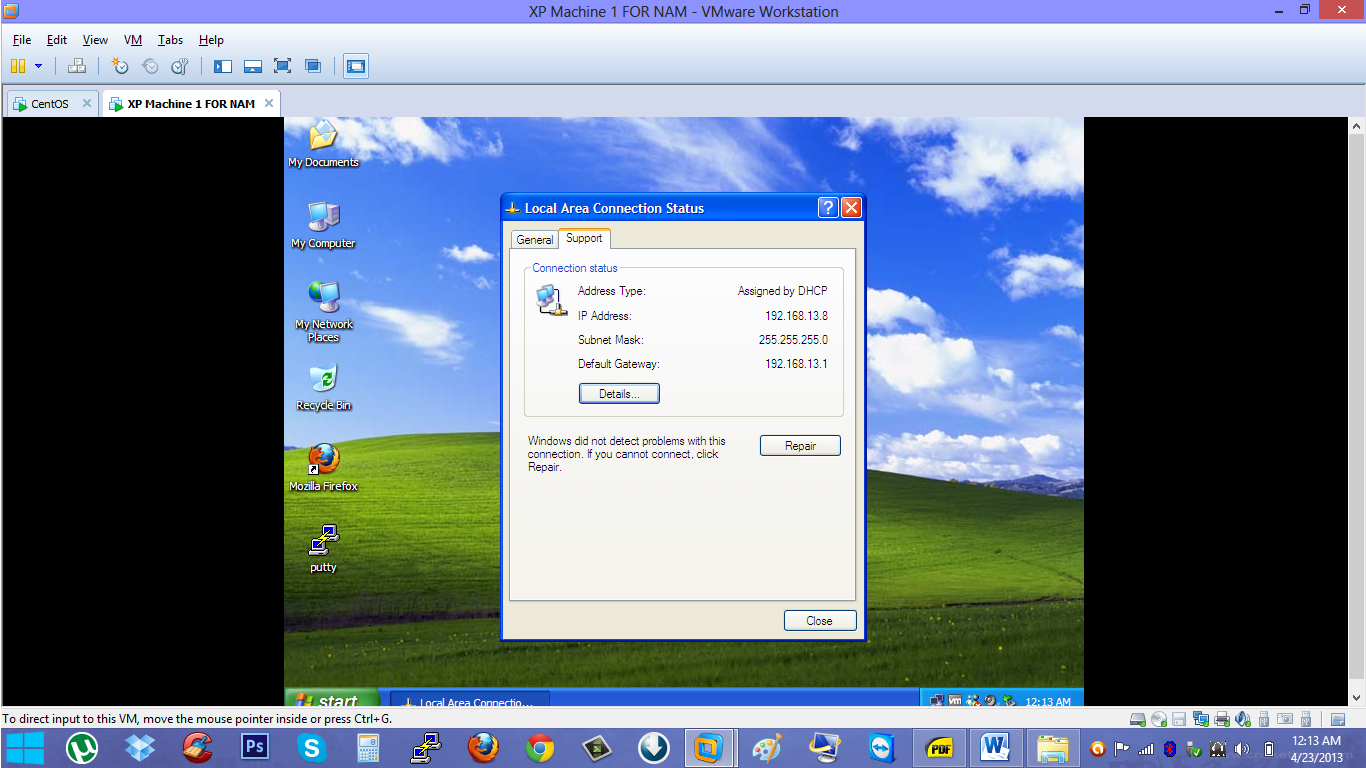
Our host OS will assign  IP address to our client XP machine by  DHCP  server. We can also check the Local Area Network Connection Status to cross verify that this new address is assigned by  DHCP  server.


As we can see that DHCP server is assigning IP address to our client XP. Thus whole practical is carried away.